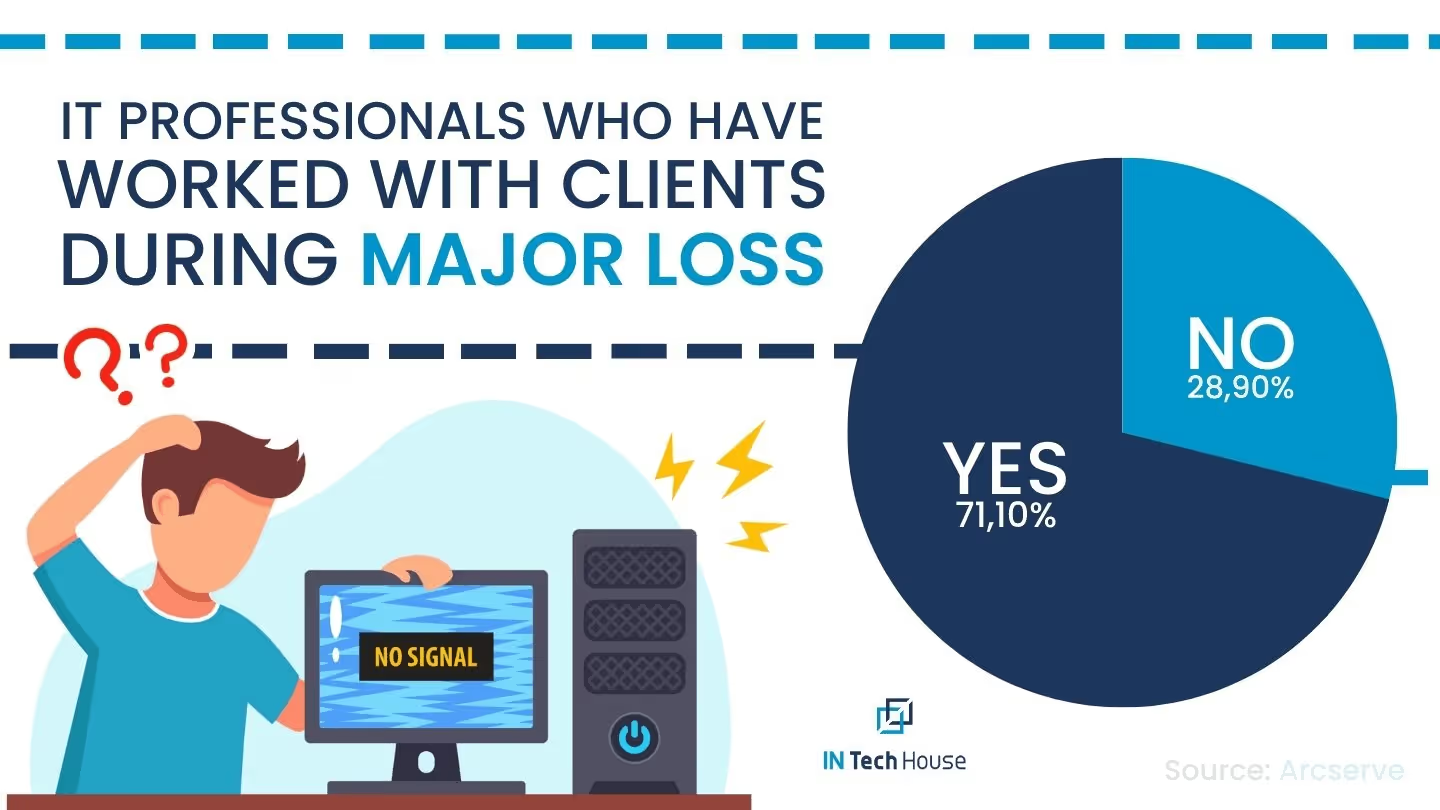
One of the most unsettling issues is encountering a blank computer monitor when you power on your PC. Before panicking, check the monitor’s power supply and connection to the computer. If the issue persists, try connecting the monitor to another computer to identify whether the problem lies with the monitor or the PC. Faulty cables or outdated graphics drivers could be potential culprits.
Are some of your keyboard keys unresponsive? This problem could occur due to debris accumulation beneath the keys or a malfunctioning keyboard driver. Try cleaning the keyboard gently using compressed air and update the keyboard driver. If the issue persists, consider replacing the keyboard with a new one.
A malfunctioning mouse can significantly hinder your computing experience. If your mouse cursor is freezing or moving erratically, check the mouse’s physical condition and its connection to the PC. You may also want to update the mouse driver or try using a different USB port to see if the issue resolves.
For laptop and computer users experiencing cursor jumps or erratic movements, disabling the touchpad while typing can be an effective solution. Navigate to your touchpad settings and enable the option to disable the touchpad temporarily when typing.
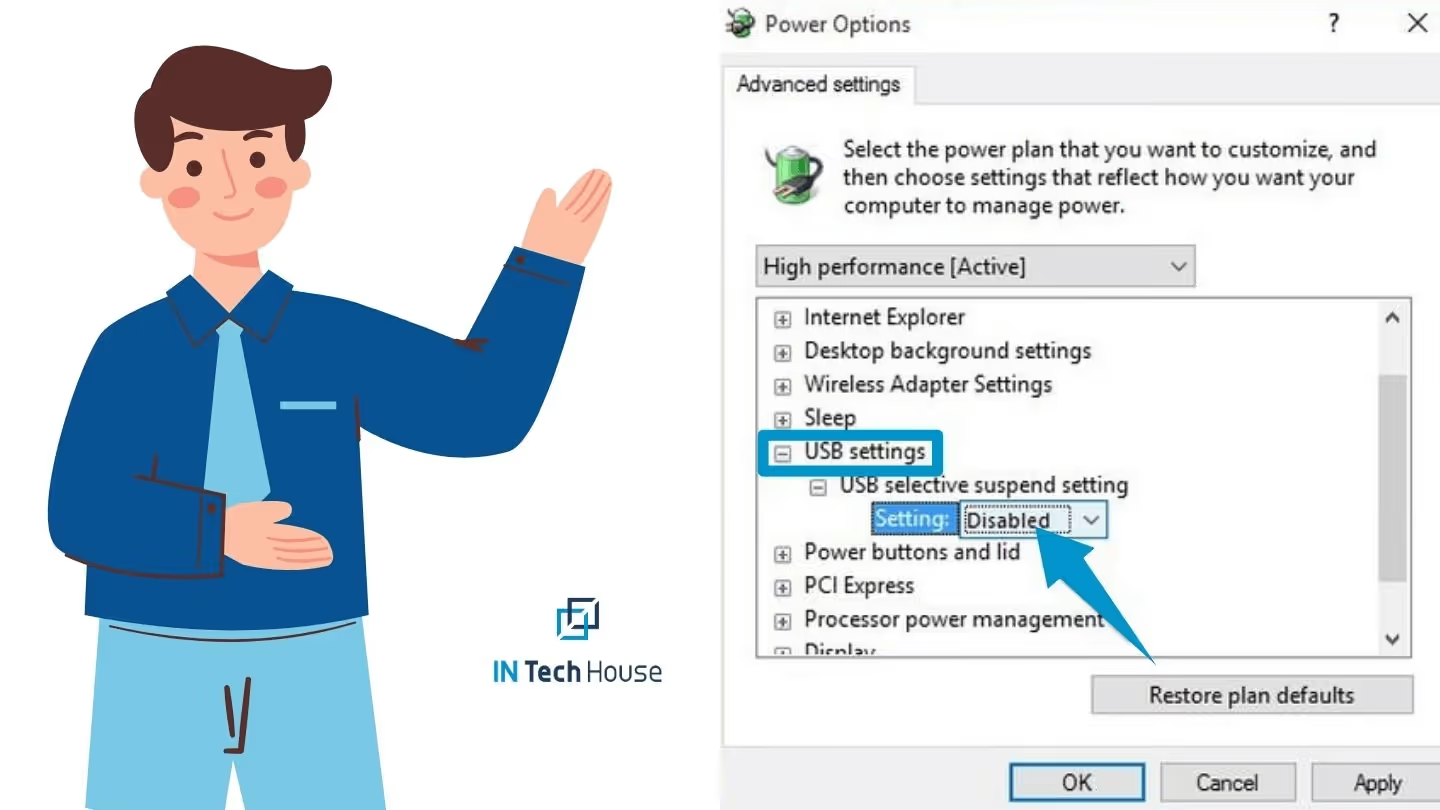
Distorted images or strange artefacts on the screen can be disconcerting. Check the graphics card connections and ensure that the drivers are up to date. If the problem persists, consider testing the monitor on another personal computer or using a different monitor to isolate the issue.
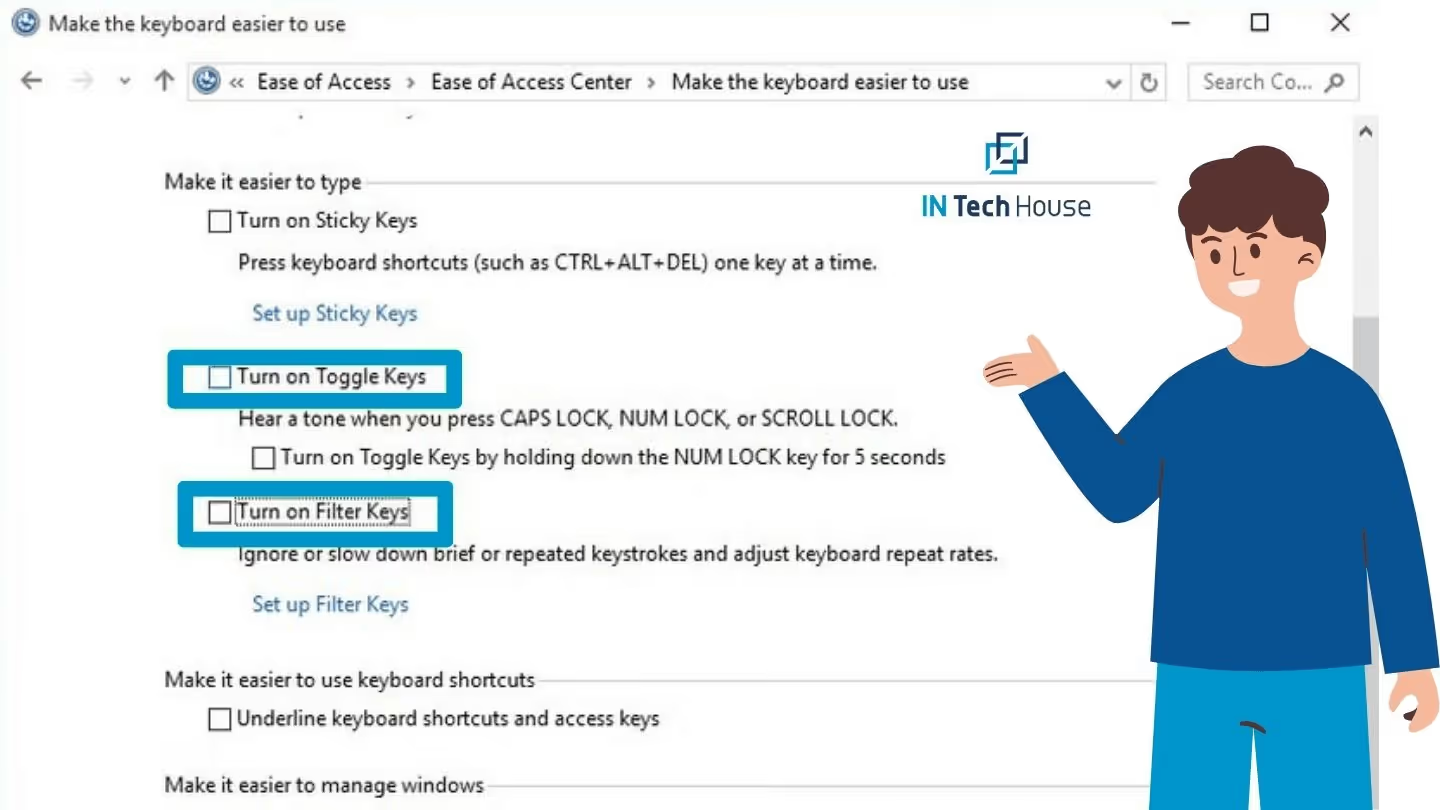
If your keyboard is typing multiple characters with a single keystroke or repeating keys, adjusting the keyboard repeat rate and delay system hardware settings in Windows can often resolve the problem. Additionally, cleaning the keyboard and ensuring there is no physical damage may help.
The motherboard is the heart of your PC, and when it encounters issues, the entire system can suffer. If you experience frequent crashes before the operating system loads or notice random reboots, it could indicate a problem with the motherboard. Consult a professional technician for a thorough diagnosis and possible repair.
If your laptop’s speakers produce annoying static or crackling sounds, try updating the audio drivers first. If the issue persists, the speakers may be faulty, and a technician can help with necessary repairs or replacements.
Certain hardware issues might require the expertise of a professional. For instance, persistent fan noises, signs of virus infection, or a failing hard disk demand immediate attention from an experienced technician. Don’t hesitate to seek professional help to prevent further damage.
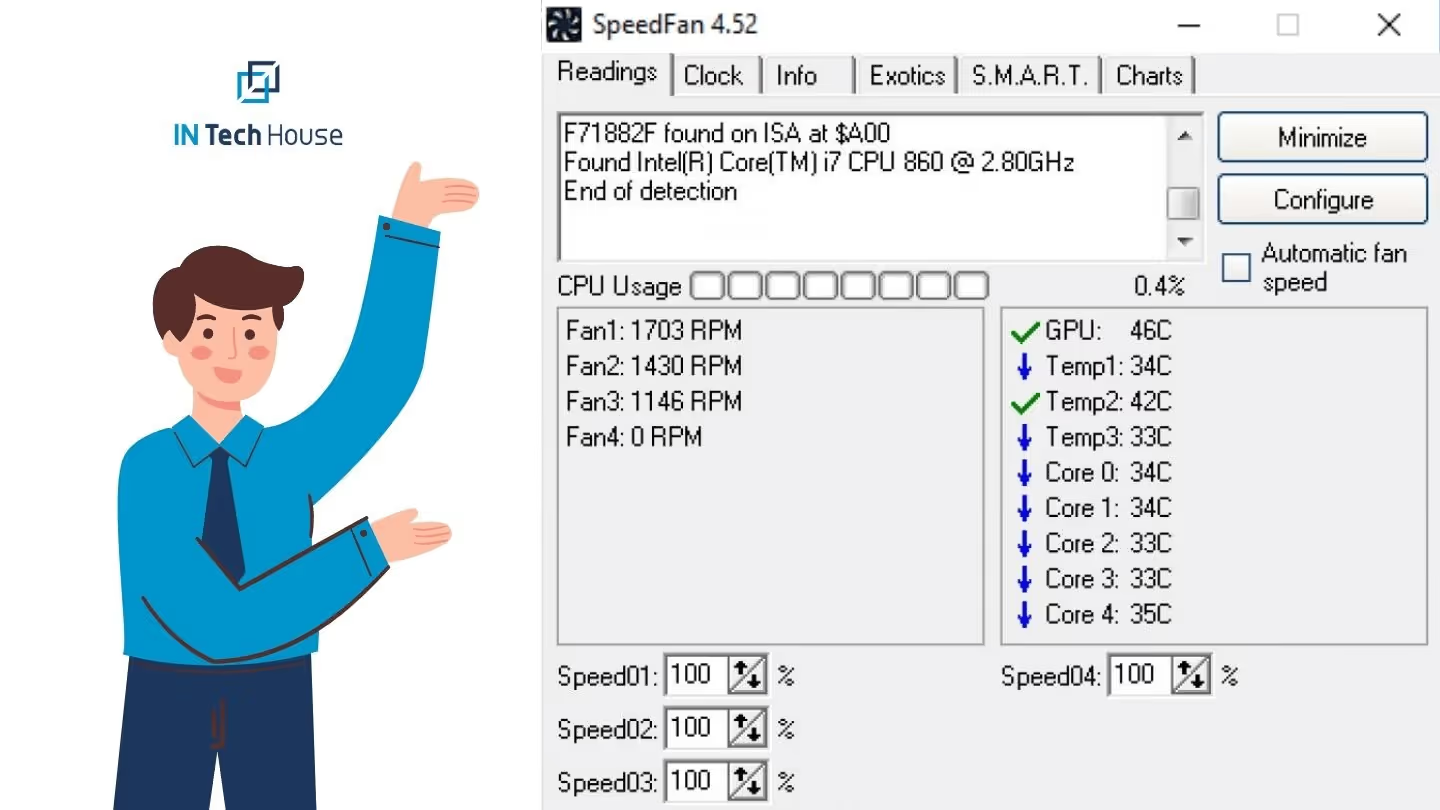
Noisy fans can be annoying and disruptive. Regularly clean the fans and ensure proper airflow to minimize fan noises. If the noise continues, you may need to replace the fan or consider upgrading to a quieter cooling solution.
Virus infections can wreak havoc on your PC, causing performance issues, unexpected crashes, and data breaches. Keep your system updated with reliable antivirus software and perform regular scans to detect and remove potential threats.
For MacBook users, a dimmed or blacked-out screen might indicate a problem with the motherboard. Seek assistance from an authorized service centre or an Apple-certified technician to diagnose and resolve the issue.
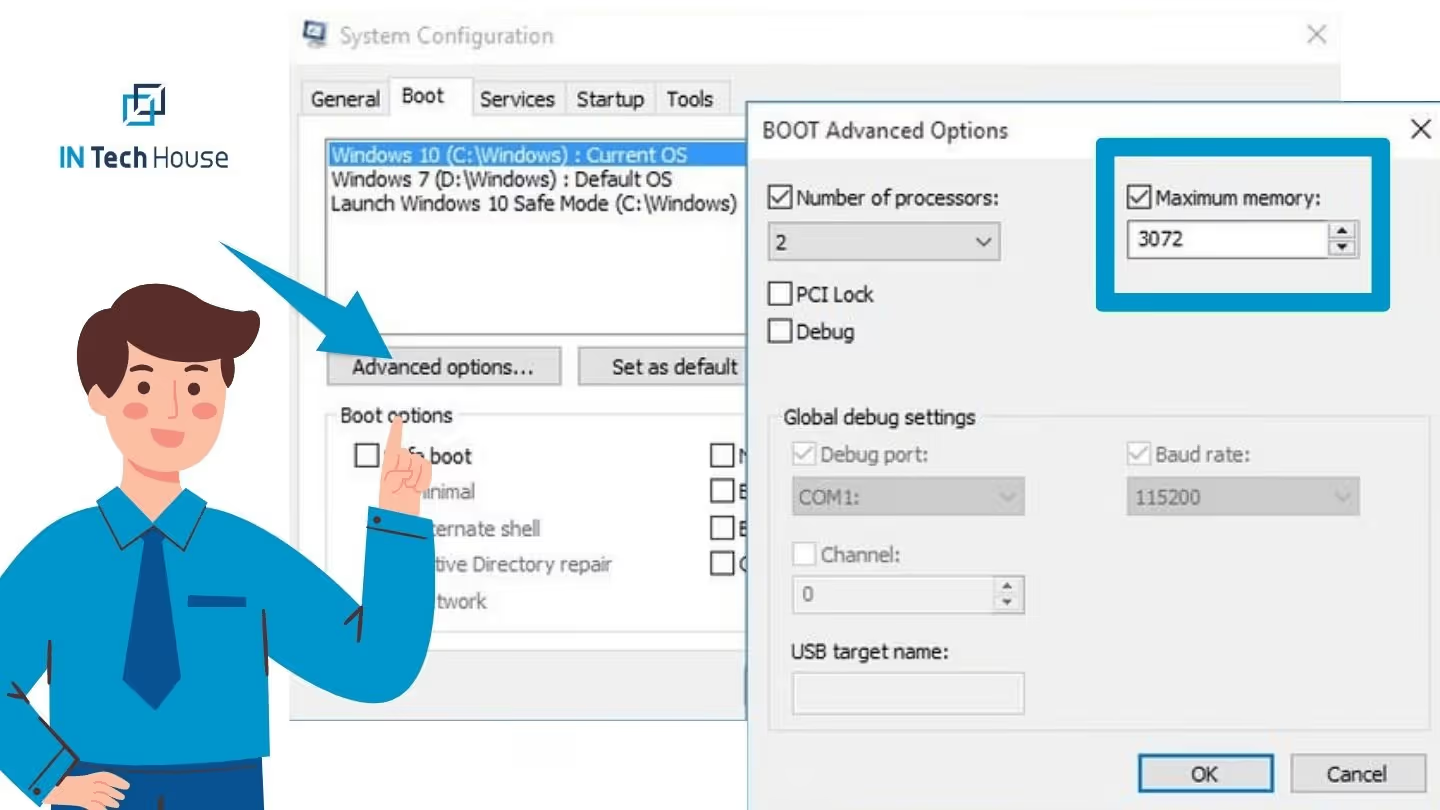
Unusual grinding or whirring sounds coming from your PC could be a sign of hardware issues. Check your hard drive and fans to identify the source of the noise, and seek professional help if needed.
If your hard drive starts making strange noises, it might be failing. Back up your data immediately and consider replacing the hard drive to avoid data loss.
A faulty hard disk can lead to data loss and system crashes. If your PC shows signs of a failing hard disk, such as slow performance or frequent error messages, back up your important data immediately. Replacing the faulty hard disk with a new one and restoring your data can prevent further complications.
Encountering a blank monitor upon starting your PC can be alarming. Before panicking, ensure that all connections between the monitor and PC are secure. If the issue persists, it may indicate a problem with the graphics card or the monitor itself. Testing the monitor on another PC or trying a different monitor will help identify the source of the problem.
If your monitor loses signal and goes black after a few seconds, the issue could be related to the graphics card, monitor settings, or cable connections. Double-check all connections and ensure the monitor settings are correct. If the problem persists, consult a professional technician for further assessment.
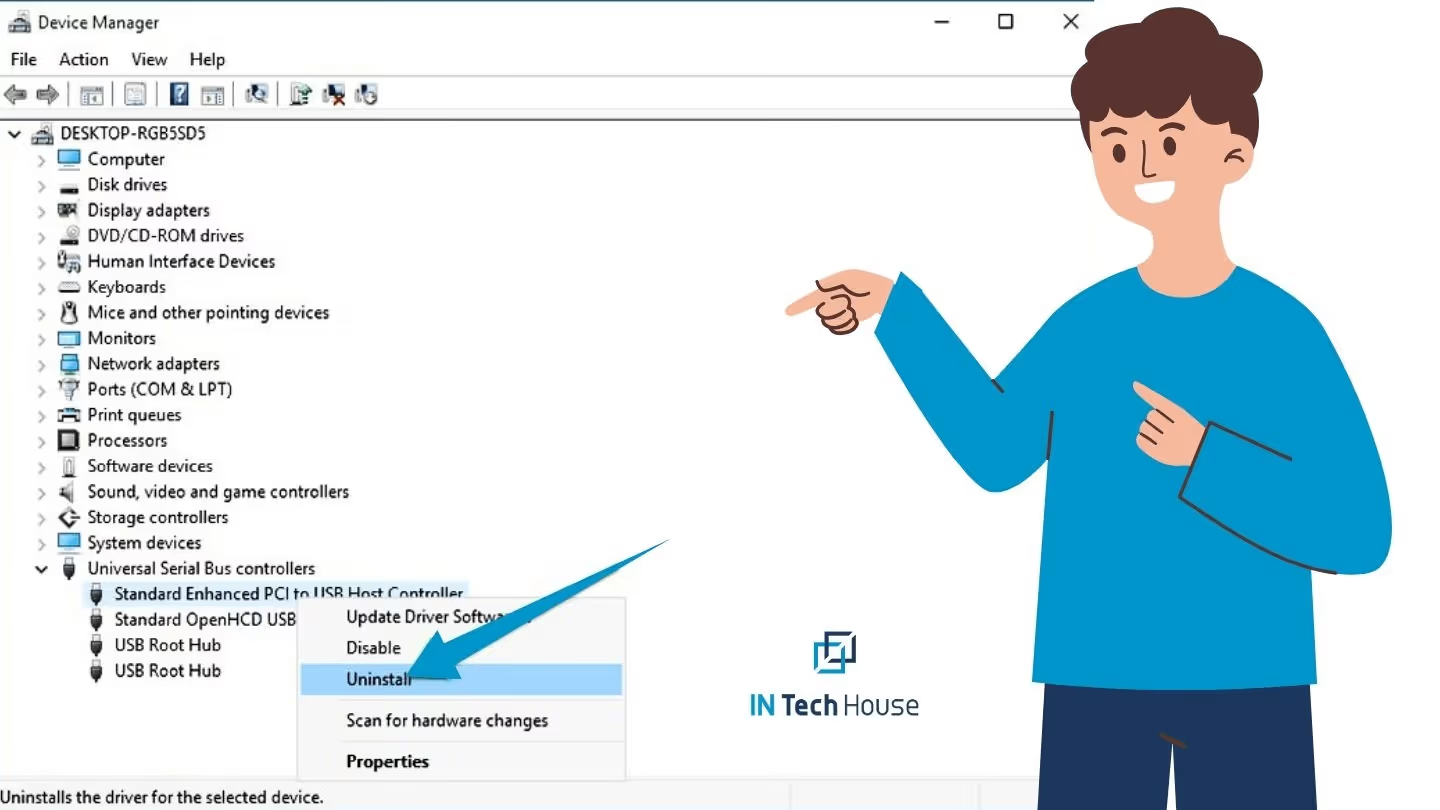
Mouse left-click malfunctions can hinder your productivity and cause frustration. To fix this issue in Windows, follow these steps:
As technology continues to advance, our dependence on personal computers has grown exponentially. Whether for work, entertainment, or communication, PCs play a vital role in our daily lives. However, encountering hardware problems can disrupt our productivity and cause frustration. In this article, we will provide you with expert advice from INTechHouse on how to avoid common PC hardware problems and keep your computer running smoothly.
When building or buying a PC, opt for quality components from reputable manufacturers. Quality components are more reliable, tend to have longer lifespans, and are less likely to encounter hardware failures. While they may come at a slightly higher cost, the peace of mind and reduced risk of issues are well worth it.
Whether you’re upgrading components or assembling a new PC, proper installation is crucial. Follow manufacturer guidelines, use the right tools, and avoid applying excessive force when connecting components. Incorrect installations can lead to physical damage or compatibility issues, causing potential hardware failures.
Dust and debris accumulation inside your PC can hinder airflow and cause overheating. Regularly clean the interior of your PC, especially around fans and heat sinks, to prevent hardware components from overheating and potentially failing. Use compressed air to blow away dust gently, and consider investing in dust filters for improved long-term maintenance.
Power surges and electrical spikes can damage your PC’s components, leading to hardware failures. Invest in a good-quality surge protector to safeguard your PC from voltage fluctuations. Surge protectors act as a buffer and can save your PC from potential damage caused by sudden power surges.
Overheating is a significant cause of hardware problems. Ensure your PC has proper ventilation and is placed in a well-ventilated area. Consider adding additional cooling solutions, such as case fans or liquid cooling systems, if you engage in resource-intensive tasks like gaming or video editing.
Virus infections can wreak havoc on your PC, leading to data loss and system instability. Install reliable antivirus software and keep it up to date to detect and prevent potential threats. Regularly perform full system scans to ensure your PC remains virus-free.
Outdated software, including operating systems and drivers, can cause compatibility issues and impact hardware performance. Regularly update your operating system and hardware drivers to access bug fixes, security updates, and improved compatibility with the latest applications.
Avoid abrupt power-offs and improper shutdowns, as they can lead to file corruption and hardware damage. Always shut down your PC through the appropriate software options or use the “Shutdown” button in your operating system.
By following INTechHouse’s expert advice on how to avoid common PC hardware problems, you can ensure that your computer remains reliable and efficient. Investing in quality components, proper installation, regular cleaning, and keeping your PC cool are essential steps to prevent hardware failures. Moreover, protecting your PC from power surges, using reliable antivirus software, and keeping your software up to date will enhance your overall computing experience. With these proactive measures, you can enjoy trouble-free PC usage, allowing you to focus on what matters most – your tasks, projects, and digital endeavoursINTechHouse Advice: How to Avoid Common PC Hardware Problems
This initial conversation is focused on understanding your product, technical challenges, and constraints.
No sales pitch - just a practical discussion with experienced engineers.
Share a few details about your product and context. We’ll review the information and suggest the most appropriate next step.